



















Home Assistant 完全指南:Docker 部署与智能家居自动化教程(2026版)
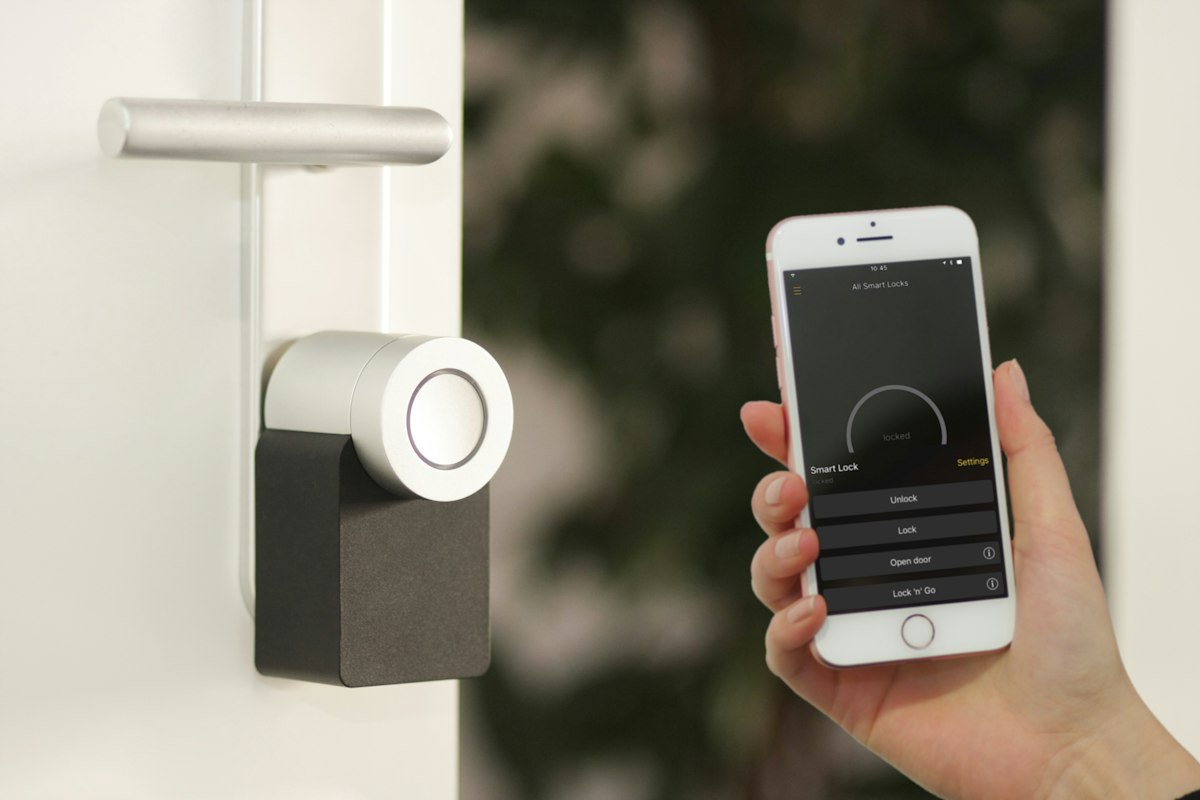
Home Assistant 是一款开源的智能家居平台,能够统一管理和控制各种智能设备。它支持 2000+ 种设备和平台,让您摆脱厂商锁定,实现真正的智能家居自动化。本教程将带您从零开始,通过 Docker 部署 Home Assistant,并构建完整的智能家居系统。
目录
- 什么是 Home Assistant?
- 为什么选择 Home Assistant?
- 系统要求与准备
- Docker 部署方案
- 初始配置与设置
- 设备接入与集成
- 自动化配置
- Dashboard 定制
- 远程访问与安全
- 高级功能与优化
1. 什么是 Home Assistant?
1.1 Home Assistant 简介
Home Assistant(简称 HA)是由 Paulus Schoutsen 于 2013 年发起的开源智能家居项目。它的核心理念是:本地优先、隐私保护、开放标准。所有数据处理都在本地完成,不依赖云端服务,确保您的数据安全和隐私。
核心特点:
- 🏠 本地运行:数据存储在本地,无需云端
- 🔒 隐私保护:您的数据完全属于您
- 🔌 广泛兼容:支持 2000+ 设备和平台
- ⚙️ 高度可定制:YAML 配置 + 可视化界面
- 🤖 强大自动化:基于条件、触发器和动作
- 📱 多平台客户端:Web、iOS、Android
- 🆓 完全免费:开源软件,无订阅费用
- 👥 活跃社区:全球开发者贡献
1.2 架构组成
┌─────────────────────────────────────┐
│         Home Assistant Core         │
│                                     │
│  ┌──────────┬──────────┬─────────┐  │
│  │ Integrations │ Automations │   │  │
│  │ (集成层)  │ (自动化层) │       │  │
│  └──────────┴──────────┴─────────┘  │
│                                     │
│  ┌──────────────────────────────┐   │
│  │      State Machine           │   │
│  │      (状态机)                │   │
│  └──────────────────────────────┘   │
└─────────────────────────────────────┘
           ↓         ↓         ↓
    ┌────────┐ ┌────────┐ ┌────────┐
    │ Zigbee │ │  WiFi  │ │  BLE   │
    │ 设备   │ │ 设备   │ │ 设备   │
└────────┘ └────────┘ └────────┘主要组件:
Core(核心)
- 状态管理
- 事件总线
- 服务调用
Integrations(集成)
- 设备驱动
- 平台适配
- 协议支持
Automations(自动化)
- 触发器(Triggers)
- 条件(Conditions)
- 动作(Actions)
Frontend(前端)
- Lovelace UI
- Dashboard
- 移动端 App
1.3 与其他平台对比
| 特性 | Home Assistant | SmartThings | Apple HomeKit | Google Home |
|---|---|---|---|---|
| 价格 | 🆓 免费 | 💰 部分付费 | 💰 需要 Apple 设备 | 🆓 免费 |
| 本地运行 | ✅ 完全本地 | ⚠️ 依赖云端 | ✅ 本地 | ⚠️ 依赖云端 |
| 隐私保护 | ⭐⭐⭐⭐⭐ | ⭐⭐ | ⭐⭐⭐⭐ | ⭐⭐ |
| 设备支持 | ⭐⭐⭐⭐⭐ 2000+ | ⭐⭐⭐ 有限 | ⭐⭐⭐ 有限 | ⭐⭐⭐ 有限 |
| 自定义程度 | ⭐⭐⭐⭐⭐ | ⭐⭐ | ⭐⭐ | ⭐⭐ |
| 自动化能力 | ⭐⭐⭐⭐⭐ | ⭐⭐⭐ | ⭐⭐⭐ | ⭐⭐⭐ |
| 学习曲线 | ⭐⭐⭐ 中等 | ⭐ 简单 | ⭐ 简单 | ⭐ 简单 |
| 开源 | ✅ 是 | ❌ 否 | ❌ 否 | ❌ 否 |
| 离线可用 | ✅ 完全支持 | ❌ 不可用 | ✅ 部分支持 | ❌ 不可用 |
2. 为什么选择 Home Assistant?
2.1 核心优势
优势一:真正的本地控制
云端方案的痛点:
传统智能家居:
设备 → 厂商云端 → 手机 App

问题:
❌ 断网即瘫痪
❌ 厂商倒闭 = 设备变砖
❌ 隐私数据上传云端
❌ 响应延迟高
❌ 持续订阅费用
Home Assistant 方案:
HA 本地方案:
设备 ←→ Home Assistant ←→ 手机 App

优势:
✅ 断网仍可控制
✅ 设备永远可用
✅ 数据完全本地
✅ 毫秒级响应
✅ 一次部署,永久使用实际案例:
某用户使用了小米智能家居,当小米服务器维护时,整个家里的智能设备都无法使用,包括基本的灯光控制。
切换到 Home Assistant 后,即使外网断开,局域网内的所有设备仍然正常工作。
优势二:打破生态壁垒
传统困境:
小米设备 ↔️ 只能用米家
Philips Hue ↔️ 只能用 Hue App
TP-Link ↔️ 只能用 Kasa
Aqara ↔️ 只能用 Aqara Home

结果:
- 多个 App 切换
- 无法联动不同品牌
- 体验割裂
Home Assistant 统一平台:
所有设备 → Home Assistant → 统一控制

支持的协议:
- Zigbee(通过 Zigbee2MQTT / ZHA)
- Z-Wave
- WiFi(MQTT、HTTP API)
- Bluetooth/BLE
- Matter(最新标准)
- 以及 2000+ 集成实际效果:
# 跨品牌自动化示例
automation:
  - alias: "回家模式"
    trigger:
      - platform: state
        entity_id: binary_sensor.front_door
        to: "on"
    action:
      # 打开小米灯
      - service: light.turn_on
        target:
          entity_id: light.xiaomi_lamp
      # 调整 Philips Hue 色温
      - service: light.turn_on
        target:
          entity_id: light.hue_living_room
        data:
          color_temp: 300
      # 播放 Spotify
      - service: media_player.play_media
        target:
          entity_id: media_player.spotify
        data:
          media_content_id: "spotify:playlist:xxx"
优势三:强大的自动化引擎
基础自动化:
# 简单示例:天黑开灯
automation:
  - alias: "天黑自动开灯"
    trigger:
      - platform: sun
        event: sunset
    action:
      - service: light.turn_on
        target:
entity_id: light.living_room高级自动化:
# 复杂示例:智能照明系统
automation:
  - alias: "智能照明"
    trigger:
      # 有人移动
      - platform: state
        entity_id: binary_sensor.motion_sensor
        to: "on"

      # 或手动开关
      - platform: state
        entity_id: input_boolean.guest_mode
        to: "on"

    condition:
      # 且在天黑后
      - condition: sun
        after: sunset

      # 且在工作日
      - condition: time
        weekday:
          - mon
          - tue
          - wed
          - thu
          - fri

      # 且亮度低于阈值
      - condition: numeric_state
        entity_id: sensor.light_level
        below: 100

    action:
      # 根据时间调整亮度和色温
      - choose:
          # 晚上 6-9 点:明亮暖光
          - conditions:
              - condition: time
                after: "18:00"
                before: "21:00"
            sequence:
              - service: light.turn_on
                target:
                  entity_id: light.living_room
                data:
                  brightness_pct: 80
                  color_temp: 2700

          # 晚上 9-11 点:柔和暖光
          - conditions:
              - condition: time
                after: "21:00"
                before: "23:00"
            sequence:
              - service: light.turn_on
                target:
                  entity_id: light.living_room
                data:
                  brightness_pct: 50
                  color_temp: 2200

          # 深夜:微光
          - conditions:
              - condition: time
                after: "23:00"
            sequence:
              - service: light.turn_on
                target:
                  entity_id: light.hallway
                data:
                  brightness_pct: 10
                  color_temp: 2000

        # 默认:关闭
        default:
          - service: light.turn_off
            target:
              entity_id: all
优势四:丰富的生态系统
官方集成(内置):
- 主流品牌:Philips Hue、TP-Link、Sonos、Ring 等
- 云服务:Google、Amazon、Apple、Microsoft
- 协议:MQTT、Zigbee、Z-Wave、Bluetooth
- 平台:HomeKit、Alexa、Google Assistant
社区插件(HACS):
- Xiaomi Miio(小米设备)
- Tuya(涂鸦智能)
- IKEA Tradfri
- Aqara
- 以及数百个其他集成
硬件支持:
控制器:
- Raspberry Pi(最流行)
- Intel NUC
- 旧电脑/笔记本
- NAS(Synology、QNAP)
- Docker(任何支持 Docker 的设备)

无线电适配器:
- Zigbee:CC2531、ConBee II、Sonoff Zigbee Dongle
- Z-Wave:Aeotec Gen5、Zooz ZST10
- Bluetooth:内置或 USB 适配器
2.2 适用场景
场景 1:全屋智能照明
# 自动化示例
automation:
  # 日出渐亮
  - alias: "日出唤醒"
    trigger:
      - platform: time
        at: "06:30"
    action:
      - service: light.turn_on
        target:
          entity_id: light.bedroom
        data:
          transition: 1800  # 30 分钟渐变
          brightness_pct: 100
          color_temp: 4000

  # 离家关灯
  - alias: "离家关闭所有灯"
    trigger:
      - platform: state
        entity_id: device_tracker.phone_user1
        from: "home"
        to: "not_home"
    action:
      - service: homeassistant.turn_off
        target:
          entity_id: group.all_lights
场景 2:智能温控
# 温度自动化
automation:
  # 冬季取暖
  - alias: "冬季取暖"
    trigger:
      - platform: numeric_state
        entity_id: sensor.living_room_temperature
        below: 20
    condition:
      - condition: state
        entity_id: input_boolean.winter_mode
        state: "on"
    action:
      - service: climate.set_temperature
        target:
          entity_id: climate.thermostat
        data:
          temperature: 22

  # 夏季制冷
  - alias: "夏季制冷"
    trigger:
      - platform: numeric_state
        entity_id: sensor.living_room_temperature
        above: 28
    condition:
      - condition: state
        entity_id: input_boolean.summer_mode
        state: "on"
    action:
      - service: climate.set_temperature
        target:
          entity_id: climate.ac
        data:
          temperature: 24
场景 3:安防监控
# 安防自动化
automation:
  # 布防模式
  - alias: "离家布防"
    trigger:
      - platform: state
        entity_id: alarm_control_panel.home_alarm
        to: "armed_away"
    action:
      # 开启摄像头录制
      - service: camera.record
        target:
          entity_id: camera.front_door
        data:
          duration: 300
          lookback: 10

      # 启用运动检测通知
      - service: notify.mobile_app
        data:
          message: "安防系统已布防"

  # 检测到入侵
  - alias: "入侵警报"
    trigger:
      - platform: state
        entity_id: binary_sensor.motion_outside
        to: "on"
    condition:
      - condition: state
        entity_id: alarm_control_panel.home_alarm
        state: "armed_away"
    action:
      # 发送通知
      - service: notify.mobile_app
        data:
          message: "⚠️ 检测到运动!"
          data:
            attachment:
              url: "{{ states.camera.front_door.attributes.entity_picture }}"

      # 开启所有灯
      - service: light.turn_on
        target:
          entity_id: group.outside_lights

      # 播放警报声
      - service: media_player.play_media
        target:
          entity_id: media_player.speaker
        data:
          media_content_id: "/local/alarm.mp3"
场景 4:能源管理
# 能源监控
sensor:
  - platform: integration
    source: sensor.power_consumption
    name: energy_total
    unit_prefix: k
    round: 2

automation:
  # 高耗电提醒
  - alias: "高耗电提醒"
    trigger:
      - platform: numeric_state
        entity_id: sensor.current_power
        above: 3000  # 3kW
    action:
      - service: notify.mobile_app
        data:
          message: "⚡ 当前功耗过高:{{ states('sensor.current_power') }}W"

  # 太阳能优化
  - alias: "太阳能充电优化"
    trigger:
      - platform: numeric_state
        entity_id: sensor.solar_production
        above: 2000
    action:
      # 启动洗衣机
      - service: switch.turn_on
        target:
          entity_id: switch.washing_machine

      # 给电动车充电
      - service: switch.turn_on
        target:
          entity_id: switch.ev_charger
3. 系统要求与准备
3.1 硬件要求
最低配置:
CPU: ARM Cortex-A53 1GHz 或 x86 1GHz
RAM: 1GB
存储: 8GB(建议 16GB+)
网络: 以太网或 WiFi推荐配置:
CPU: Quad-core 1.5GHz+
RAM: 2-4GB
存储: 32GB SSD
网络: 千兆以太网常用硬件平台:
Raspberry Pi(最流行)
Raspberry Pi 4 Model B:
优点:
✅ 功耗低(5-10W)
✅ 体积小
✅ 社区支持好
✅ 价格便宜($35-75)

缺点:
⚠️ SD 卡易损坏
⚠️ 性能有限

建议配置:
- RAM: 4GB 或 8GB
- 存储: 高质量 microSD 卡(Samsung EVO Plus)
- 电源: 官方电源适配器
- 散热: 散热片或风扇外壳
Raspberry Pi 5(2024 新款):
性能提升 2-3 倍
适合大型部署
价格稍高
Intel NUC / Mini PC
优点:
✅ 性能强大
✅ 可扩展性好
✅ 更稳定
✅ 可以运行其他服务推荐型号:
入门:Intel NUC i3 / Celeron J4125
中端:Intel NUC i5
高端:Intel NUC i7

二手选择:
- Dell OptiPlex Micro
- HP ProDesk Mini
- Lenovo ThinkCentre Tiny
NAS
Synology / QNAP:
优点:
✅ 已有设备,无需额外购买
✅ 存储空间大
✅ 可以同时运行其他服务

缺点:
⚠️ 性能可能不足
⚠️ 配置较复杂
3.2 软件准备
必需软件:
1. Docker 和 Docker Compose
2. 文本编辑器(VS Code 推荐)
3. SSH 客户端(用于远程管理)
4. 浏览器(Chrome/Firefox)可选软件:
- MQTT Broker(Mosquitto)
- Database(MariaDB/PostgreSQL)
- Zigbee2MQTT
- Node-RED(可视化自动化)
3.3 网络规划
IP 地址分配:
建议为 HA 分配静态 IP:

路由器设置:
- DHCP Reservation(DHCP 保留)
- 或 Static IP(静态 IP)

示例:
Home Assistant: 192.168.1.100
Zigbee Gateway: 192.168.1.101
MQTT Broker: 192.168.1.102端口需求:
Home Assistant: 8123 (TCP)
MQTT: 1883 (TCP), 8883 (TLS)
Zigbee2MQTT: 8080 (Web UI)
Node-RED: 1880 (Web UI)防火墙规则:
# 如果使用防火墙,开放必要端口
sudo ufw allow 8123/tcp
sudo ufw allow 1883/tcp
sudo ufw allow 8080/tcp
4. Docker 部署方案
使用 Docker 部署是最灵活和推荐的方式。
4.1 安装 Docker
Ubuntu/Debian
# 卸载旧版本
sudo apt remove docker docker-engine docker.io containerd runc

# 安装依赖
sudo apt update
sudo apt install \
    apt-transport-https \
    ca-certificates \
    curl \
    gnupg \
    lsb-release

# 添加 GPG 密钥
curl -fsSL https://download.docker.com/linux/ubuntu/gpg | sudo gpg --dearmor -o /usr/share/keyrings/docker-archive-keyring.gpg

# 添加仓库
echo \
  "deb [arch=$(dpkg --print-architecture) signed-by=/usr/share/keyrings/docker-archive-keyring.gpg] https://download.docker.com/linux/ubuntu \
  $(lsb_release -cs) stable" | sudo tee /etc/apt/sources.list.d/docker.list > /dev/null

# 安装 Docker
sudo apt update
sudo apt install docker-ce docker-ce-cli containerd.io

# 验证安装
docker --version
docker compose version
CentOS/RHEL
# 添加仓库
sudo yum-config-manager --add-repo https://download.docker.com/linux/centos/docker-ce.repo

# 安装
sudo yum install docker-ce docker-ce-cli containerd.io

# 启动并开机自启
sudo systemctl start docker
sudo systemctl enable docker
macOS
# 安装 Docker Desktop
brew install --cask docker

# 启动 Docker Desktop
open /Applications/Docker.app
Windows
下载 Docker Desktop for Windows
https://www.docker.com/products/docker-desktop

安装并启动
4.2 创建目录结构
# 创建项目目录
mkdir -p ~/homeassistant/{config,data}
cd ~/homeassistant

# 目录说明:
# config/ - Home Assistant 配置文件
# data/ - 数据库和其他数据
4.3 Docker Compose 配置
创建 docker-compose.yml:
version: '3.8'

services:
  homeassistant:
    container_name: homeassistant
    image: ghcr.io/home-assistant/home-assistant:stable
    volumes:
      - ./config:/config
      - /etc/localtime:/etc/localtime:ro
      - /run/dbus:/run/dbus:ro
    environment:
      - TZ=Asia/Shanghai
    network_mode: host
    restart: unless-stopped
    privileged: true
    devices:
      - /dev/ttyACM0:/dev/ttyACM0  # Zigbee dongle(如果有)

  # MQTT Broker(可选但推荐)
  mosquitto:
    container_name: mosquitto
    image: eclipse-mosquitto:latest
    ports:
      - "1883:1883"
      - "8883:8883"
    volumes:
      - ./mosquitto/config:/mosquitto/config
      - ./mosquitto/data:/mosquitto/data
      - ./mosquitto/log:/mosquitto/log
    restart: unless-stopped

  # Zigbee2MQTT(如果使用 Zigbee)
  zigbee2mqtt:
    container_name: zigbee2mqtt
    image: koenkk/zigbee2mqtt:latest
    volumes:
      - ./zigbee2mqtt:/app/data
      - /run/udev:/run/udev:ro
    devices:
      - /dev/ttyACM0:/dev/ttyACM0  # Zigbee dongle
    environment:
      - TZ=Asia/Shanghai
    restart: unless-stopped
    depends_on:
      - mosquitto

  # Node-RED(可选,可视化自动化)
  nodered:
    container_name: nodered
    image: nodered/node-red:latest
    ports:
      - "1880:1880"
    volumes:
      - ./nodered:/data
    environment:
      - TZ=Asia/Shanghai
    restart: unless-stopped
4.4 MQTT 配置
创建 Mosquitto 配置文件:
mkdir -p mosquitto/config
nano mosquitto/config/mosquitto.conf
添加内容:
# 监听端口
listener 1883

# 允许匿名访问(内网安全环境下)
allow_anonymous true

# 持久化
persistence true
persistence_location /mosquitto/data/

# 日志
log_dest file /mosquitto/log/mosquitto.log
4.5 Zigbee2MQTT 配置
如果使用 Zigbee 设备:
mkdir -p zigbee2mqtt
nano zigbee2mqtt/configuration.yaml
添加内容:
# Zigbee2MQTT 配置
homeassistant: true
permit_join: false  # 首次设置为 true 以配对设备

mqtt:
  base_topic: zigbee2mqtt
  server: 'mqtt://mosquitto:1883'

serial:
  port: /dev/ttyACM0  # Zigbee dongle 路径
  adapter: zstack  # 或 deconz, ezsp

advanced:
  log_level: info
  channel: 15
  pan_id: 0x1a62
  ext_pan_id: [0xDD, 0xDD, 0xDD, 0xDD, 0xDD, 0xDD, 0xDD, 0xDD]
  network_key: [1, 3, 5, 7, 9, 11, 13, 15, 0, 2, 4, 6, 8, 10, 12, 13]

frontend:
  port: 8080
4.6 启动服务
# 启动所有服务
docker compose up -d

# 查看日志
docker compose logs -f homeassistant

# 查看运行状态
docker ps
期望输出:
CONTAINER ID   IMAGE                                STATUS
xxx            home-assistant/home-assistant:stable Up 2 minutes
xxx            eclipse-mosquitto:latest             Up 2 minutes
xxx            koenkk/zigbee2mqtt:latest            Up 2 minutes
4.7 访问 Home Assistant
首次访问:
浏览器打开:http://your-server-ip:8123

例如:http://192.168.1.100:8123看到欢迎页面:
🎉 Welcome to Home Assistant!

继续设置...
5. 初始配置与设置
5.1 创建管理员账户
步骤:
1. 输入用户名
2. 输入密码(强密码)
3. 点击 "Create Account"
5.2 设置家庭信息
Location(位置):
- 搜索或输入地址
- 自动获取经纬度
- 设置时区:Asia/Shanghai

Unit System(单位):
- Metric(公制):°C, km
- Imperial(英制):°F, miles

Currency(货币):
- CNY(人民币)
- USD(美元)

Privacy:
- 可以选择分享匿名统计数据(帮助改进 HA)
5.3 发现设备
Home Assistant 会自动扫描网络中的设备:
自动发现的设备类型:
- Chromecast
- Sonos
- Philips Hue Bridge
- UPnP 设备
- mDNS 设备
- ...

操作:
- 点击 "Configure" 配置每个设备
- 或点击 "Skip" 稍后配置
5.4 基本设置
进入 Settings → System:
General(常规)
# configuration.yaml 示例
homeassistant:
  name: My Home
  latitude: 39.9042
  longitude: 116.4074
  elevation: 50
  unit_system: metric
  currency: CNY
  time_zone: Asia/Shanghai
Person(人员)
添加家庭成员:
1. Settings → People
2. Add Person
3. 输入姓名
4. 关联用户账户
5. 设置追踪设备(手机)
Areas(区域)
创建房间/区域:
1. Settings → Areas
2. Add Area
3. 命名(如:客厅、卧室、厨房)
4. 添加楼层(可选)
5. 分配设备到区域
推荐区域划分:
一楼:
- 客厅(Living Room)
- 餐厅(Dining Room)
- 厨房(Kitchen)
- 卫生间(Bathroom)

二楼:
- 主卧(Master Bedroom)
- 次卧(Bedroom 2)
- 书房(Office)

室外:
- 花园(Garden)
- 车库(Garage)
- 前门(Front Door)
5.5 备份配置
手动备份:
Settings → System → Backups
→ Create Backup
→ 下载到本地自动备份:
# 使用 Shell Command 定时备份
shell_command:
  backup_config: >
    tar czf /config/backups/backup_$(date +%Y%m%d_%H%M%S).tar.gz /config

automation:
  - alias: "每日备份"
    trigger:
      - platform: time
        at: "03:00:00"
    action:
      - service: shell_command.backup_config
6. 设备接入与集成
6.1 集成方式概述
三种主要方式:
官方集成(Built-in)
- 在 Settings → Devices & Services 中添加
- 支持主流品牌和协议
HACS 社区集成
- 需要先安装 HACS
- 支持更多设备和平台
手动配置(YAML)
- 编辑 configuration.yaml
- 最灵活,但需要技术知识
6.2 安装 HACS
HACS(Home Assistant Community Store)是社区插件商店。
安装步骤:
# 方法 1:一键脚本
wget -O - https://get.hacs.xyz | bash -

# 方法 2:手动安装
cd ~/homeassistant/config
mkdir custom_components
cd custom_components
wget https://github.com/hacs/integration/releases/latest/download/hacs.zip
unzip hacs.zip
rm hacs.zip
重启 Home Assistant:
Settings → System → Restart
或使用命令:
docker restart homeassistant
配置 HACS:
1. 刷新浏览器
2. 左侧出现 HACS 菜单
3. 点击 Configure
4. 登录 GitHub 账号
5. 完成设置
6.3 常见设备接入
WiFi 设备
TP-Link Kasa:
Settings → Devices & Services
→ Add Integration
→ 搜索 "TP-Link"
→ 输入设备 IP 或自动发现
Xiaomi Miio(通过 HACS):
HACS → Integrations
→ 搜索 "Xiaomi Miio"
→ Install
→ 重启 HA
→ 配置集成(需要 Token)
获取 Token 方法:
# 使用 miio 工具
pip install python-miio
miio token --ip 192.168.1.xxx
Zigbee 设备
使用 Zigbee2MQTT:
- 允许配对:
# zigbee2mqtt/configuration.yaml
permit_join: true- 重启 Zigbee2MQTT:
docker restart zigbee2mqtt- 配对设备:
按照设备说明书进入配对模式
通常是长按按钮 5-10 秒- 查看配对结果:
访问 Zigbee2MQTT Web UI: http://your-ip:8080
看到新设备即成功- 禁用配对:
permit_join: false在 HA 中使用:
设备会自动出现在 HA 中
可以在 Settings → Devices 查看
Bluetooth 设备
小米温湿度传感器:
# configuration.yaml
sensor:
  - platform: mitemp_bt
    mac: 'AA:BB:CC:DD:EE:FF'
    name: "Living Room Sensor"
    force_update: false
    median: 3
    decimals: 1
    monitored_conditions:
      - temperature
      - humidity
      - battery
6.4 MQTT 设备
通用 MQTT 设备:
# configuration.yaml
mqtt:
  sensor:
    - name: "Temperature"
      state_topic: "home/living_room/temperature"
      unit_of_measurement: "°C"
      value_template: "{{ value_json.temperature }}"

  switch:
    - name: "Smart Plug"
      command_topic: "home/plug/set"
      state_topic: "home/plug/state"
      payload_on: "ON"
payload_off: "OFF"发布测试消息:
# 使用 mosquitto_pub
docker exec mosquitto mosquitto_pub \
  -t "home/living_room/temperature" \
  -m '{"temperature": 25.5}'
6.5 ESPHome 设备
ESPHome 用于 DIY ESP32/ESP8266 设备。
安装 ESPHome(HACS):
HACS → Integrations
→ 搜索 "ESPHome"
→ Install创建配置:
# living_room_light.yaml
esphome:
  name: living-room-light

esp32:
  board: esp32dev

wifi:
  ssid: "YourWiFi"
  password: "YourPassword"

api:

ota:

light:
  - platform: neopixelbus
    type: GRB
    variant: WS2812
    pin: GPIO2
    num_leds: 30
    name: "LED Strip"
    effects:
      - random:
      - pulse:
- strobe:编译和上传:
ESPHome Dashboard
→ New Device
→ 编辑配置
→ Validate
→ Install
→ 选择上传方式(OTA 或 USB)
7. 自动化配置
7.1 自动化基础
三个核心要素:
automation:
  - alias: "自动化名称"

    # 触发器:什么情况下执行
    trigger:
      - platform: state
        entity_id: binary_sensor.motion
        to: "on"

    # 条件:满足什么条件才执行(可选)
    condition:
      - condition: time
        after: "18:00"
        before: "23:00"

    # 动作:执行什么操作
    action:
      - service: light.turn_on
        target:
          entity_id: light.living_room
7.2 触发器类型
状态触发
trigger:
  - platform: state
    entity_id: light.living_room
    from: "off"
    to: "on"
时间触发
trigger:
  - platform: time
    at: "07:00:00"

  - platform: time_pattern
    minutes: "/15"  # 每 15 分钟
太阳触发
trigger:
  - platform: sun
    event: sunrise
    offset: "-00:30:00"  # 日出前 30 分钟

  - platform: sun
    event: sunset
    offset: "+01:00:00"  # 日落后 1 小时
数值触发
trigger:
  - platform: numeric_state
    entity_id: sensor.temperature
    above: 30

  - platform: numeric_state
    entity_id: sensor.humidity
    below: 40
    above: 60
地理围栏触发
trigger:
  - platform: zone
    entity_id: device_tracker.phone
    zone: zone.home
    event: enter  # 或 leave
Webhook 触发
trigger:
  - platform: webhook
    webhook_id: my_webhook_id
7.3 条件类型
状态条件
condition:
  - condition: state
    entity_id: input_boolean.vacation_mode
    state: "off"
时间条件
condition:
  - condition: time
    weekday:
      - mon
      - tue
      - wed
      - thu
      - fri
    after: "09:00"
    before: "17:00"
数值条件
condition:
  - condition: numeric_state
    entity_id: sensor.brightness
    below: 100
模板条件
condition:
  - condition: template
    value_template: >
      {{ states('sensor.temperature') | float > 25 }}
AND/OR 条件
condition:
  - condition: and
    conditions:
      - condition: state
        entity_id: input_boolean.night_mode
        state: "on"
      - condition: numeric_state
        entity_id: sensor.temperature
        below: 20

  - condition: or
    conditions:
      - condition: state
        entity_id: person.john
        state: "home"
      - condition: state
        entity_id: person.jane
        state: "home"
7.4 动作类型
调用服务
action:
  - service: light.turn_on
    target:
      entity_id: light.living_room
    data:
      brightness_pct: 80
      color_temp: 3000
延迟
action:
  - delay: "00:05:00"  # 等待 5 分钟
等待触发
action:
  - wait_for_trigger:
      - platform: state
        entity_id: binary_sensor.door
        to: "off"
    timeout: "00:10:00"  # 最多等待 10 分钟
条件分支
action:
  - choose:
      - conditions:
          - condition: state
            entity_id: input_boolean.movie_mode
            state: "on"
        sequence:
          - service: light.turn_off
            target:
              entity_id: all

      - conditions:
          - condition: state
            entity_id: input_boolean.reading_mode
            state: "on"
        sequence:
          - service: light.turn_on
            target:
              entity_id: light.reading_lamp
            data:
              brightness_pct: 100

    default:
      - service: light.turn_on
        target:
          entity_id: light.living_room
发送通知
action:
  - service: notify.mobile_app_john_phone
    data:
      title: "Home Alert"
      message: "Motion detected at front door"
      data:
        push:
          sound: "default"
        attachment:
          url: "{{ states.camera.front_door.attributes.entity_picture }}"
7.5 实用自动化示例
示例 1:智能夜灯
automation:
  - alias: "智能夜灯"
    trigger:
      - platform: state
        entity_id: binary_sensor.bedroom_motion
        to: "on"

    condition:
      - condition: state
        entity_id: sun.sun
        state: "below_horizon"
      - condition: time
        after: "22:00"
        before: "06:00"

    action:
      - service: light.turn_on
        target:
          entity_id: light.bedroom_nightlight
        data:
          brightness_pct: 10
          kelvin: 2000

      # 2 分钟后自动关闭
      - delay: "00:02:00"

      - service: light.turn_off
        target:
          entity_id: light.bedroom_nightlight
示例 2:天气提醒
automation:
  - alias: "雨天提醒"
    trigger:
      - platform: time
        at: "07:00:00"

    condition:
      - condition: state
        entity_id: weather.home
        state: "rainy"

    action:
      - service: notify.mobile_app
        data:
          title: "☔ 天气提醒"
          message: "今天有雨,记得带伞!"

      # 如果开车,提醒带伞到车上
      - condition: state
        entity_id: device_tracker.car
        state: "home"
      - service: notify.mobile_app
        data:
          message: "车在家里,可以把伞放车上"
示例 3:节能模式
automation:
  - alias: "无人节能模式"
    trigger:
      - platform: state
        entity_id: zone.home
        to: "0"  # 家中无人
        for: "00:15:00"  # 持续 15 分钟

    action:
      # 关闭所有灯
      - service: homeassistant.turn_off
        target:
          entity_id: group.all_lights

      # 调整空调
      - service: climate.set_temperature
        target:
          entity_id: climate.thermostat
        data:
          temperature: 26  # 节能温度

      # 关闭非必要电器
      - service: switch.turn_off
        target:
          entity_id:
            - switch.tv
            - switch.gaming_console
            - switch.sound_system

      # 发送通知
      - service: notify.mobile_app
        data:
          message: "🏠 已启动节能模式"
8. Dashboard 定制
8.1 Lovelace UI 基础
Home Assistant 使用 Lovelace UI,可以通过 YAML 或可视化编辑器定制。
访问 Dashboard:
主页即为 Dashboard
点击右上角三个点 → Edit Dashboard
8.2 视图和卡片
创建新视图:
Edit Dashboard
→ Add View
→ 选择类型:
  - Panel(单列)
  - Grid(网格,推荐)
- Masonry(瀑布流)常用卡片类型:
Entities Card(实体卡片)
type: entities
title: 客厅设备
entities:
  - entity: light.living_room
    name: 主灯
  - entity: switch.fan
    name: 风扇
  - entity: sensor.temperature
    name: 温度
  - entity: sensor.humidity
    name: 湿度
Button Card(按钮卡片)
type: button
entity: light.living_room
name: 客厅灯
icon: mdi:lightbulb
show_state: true
tap_action:
  action: toggle
hold_action:
  action: more-info
Picture Elements Card(图片元素)
type: picture-elements
image: /local/floor_plan.png
elements:
  - type: state-icon
    entity: light.living_room
    style:
      top: 50%
      left: 50%
  - type: state-label
    entity: sensor.temperature
    style:
      top: 20%
      left: 20%
Gauge Card(仪表盘)
type: gauge
entity: sensor.temperature
min: 0
max: 40
severity:
  green: 0
  yellow: 25
  red: 30
History Graph Card(历史图表)
type: history-graph
title: 温度趋势
entities:
  - entity: sensor.living_room_temp
    name: 客厅
  - entity: sensor.bedroom_temp
    name: 卧室
hours_to_show: 24
8.3 主题定制
安装主题(通过 HACS):
HACS → Frontend
→ 搜索主题(如 "Material Dark Theme")
→ Install
→ 重启 HA
→ Profile → 选择主题自定义主题:
# themes/custom.yaml
my_theme:
  primary-color: "#03a9f4"
  accent-color: "#ff5722"
  background-color: "#ffffff"
  card-background-color: "#fafafa"
9. 远程访问与安全
9.1 远程访问方案
方案 1:Cloudflare Tunnel(推荐)
参见本站教程:Cloudflare Tunnel 完全指南
优点:
- ✅ 免费
- ✅ 安全
- ✅ 无需端口转发
- ✅ 自动 HTTPS
方案 2:Home Assistant Cloud(Nabu Casa)
付费服务:$6.5/月
优点:
- 一键配置
- 支持 Alexa/Google Assistant
- 资助 HA 开发
方案 3:VPN
WireGuard / OpenVPN
优点:
- 最安全
- 完全控制
缺点:
- 配置复杂
- 需要在客户端安装 VPN
9.2 安全加固
1. 强密码
Settings → People
→ 为用户设置强密码
→ 启用两步验证(2FA)
2. 限制登录尝试
# configuration.yaml
http:
  ip_ban_enabled: true
  login_attempts_threshold: 5
3. 使用 HTTPS
始终通过 HTTPS 访问
Cloudflare Tunnel 自动提供
4. 定期更新
# 更新 Home Assistant
docker pull ghcr.io/home-assistant/home-assistant:stable
docker compose down
docker compose up -d
5. 备份配置
定期备份 configuration.yaml 和整个 config 目录10. 高级功能与优化
10.1 数据库优化
使用 MariaDB:
# docker-compose.yml 添加
services:
  mariadb:
    image: mariadb:10.11
    environment:
      MYSQL_ROOT_PASSWORD: secret
      MYSQL_DATABASE: homeassistant
      MYSQL_USER: hass
      MYSQL_PASSWORD: secret
    volumes:
      - ./mariadb:/var/lib/mysql
    restart: unless-stopped

  homeassistant:
    depends_on:
- mariadb# configuration.yaml
recorder:
db_url: mysql://hass:secret@mariadb/homeassistant
purge_keep_days: 30
commit_interval: 3010.2 性能优化
排除不必要的实体:
recorder:
  exclude:
    entities:
      - sensor.time
      - sensor.date
    domains:
      - updater
- persistent_notification减少历史记录:
history:
  exclude:
    domains:
      - camera
10.3 监控和维护
系统监控:
# 添加系统传感器
sensor:
  - platform: systemmonitor
    resources:
      - type: disk_use_percent
        arg: /
      - type: memory_use_percent
      - type: processor_use
- type: last_boot健康检查:
binary_sensor:
  - platform: ping
    host: 8.8.8.8
    name: Internet Connection
    count: 2
    scan_interval: 60
常见问题解答
Q1: Home Assistant 需要什么配置?
A:
- 最低:Raspberry Pi 3,1GB RAM
- 推荐:Raspberry Pi 4,4GB RAM
- 更好:Intel NUC 或 Mini PC
Q2: 如何备份和恢复?
A:
# 备份
tar czf ha-backup.tar.gz ~/homeassistant/config/

# 恢复
tar xzf ha-backup.tar.gz -C ~/homeassistant/
docker restart homeassistant
Q3: 支持哪些智能设备?
A: 2000+ 设备和平台,包括:
- Philips Hue
- Xiaomi/Aqara
- TP-Link
- IKEA
- Sonos
- Ring
- Nest
- 以及通过 Zigbee、Z-Wave、MQTT 的无数设备
Q4: 可以离线使用吗?
A: 是的!Home Assistant 完全本地运行,断网仍可控制所有本地设备。
Q5: 学习难度大吗?
A:
- 基础使用:简单,可视化界面
- 高级自动化:需要学习 YAML
- 社区资源丰富,文档完善
Q6: 如何更新?
A:
docker pull ghcr.io/home-assistant/home-assistant:stable
docker compose down
docker compose up -d
Q7: 可以和 Alexa/Google 集成吗?
A: 是的,通过 Home Assistant Cloud 或手动配置。
Q8: 数据安全吗?
A: 非常安全:
- 数据本地存储
- 可选端到端加密
- 开源代码可审计
- 定期安全更新
总结
Home Assistant 是构建智能家居的最佳选择,它提供:
🎯 核心价值
- 完全控制:本地运行,数据私有
- 无限可能:2000+ 集成,高度可定制
- 强大自动化:复杂的场景轻松实现
- 开放生态:不被厂商锁定
- 成本效益:免费软件,可使用旧硬件
💡 入门建议
- 从小开始:先接入 1-2 个设备
- 逐步扩展:根据需要添加功能
- 善用社区:论坛和 Discord 很活跃
- 定期备份:保护配置和数据
- 保持更新:获取新功能和修复
📚 延伸阅读
💬 获取帮助
- 📖 官方文档:home-assistant.io/docs
- 💬 社区论坛:community.home-assistant.io
- 💬 Discord:discord.gg/c5DvZ4e
- 🎥 YouTube:大量视频教程
- 💡 本站交流:欢迎在评论区分享经验
🏠 开始构建您的智能家居,享受科技带来的便利!
💡 提示:收藏本页面以备将来参考。如果您觉得本教程有帮助,欢迎分享给更多朋友!